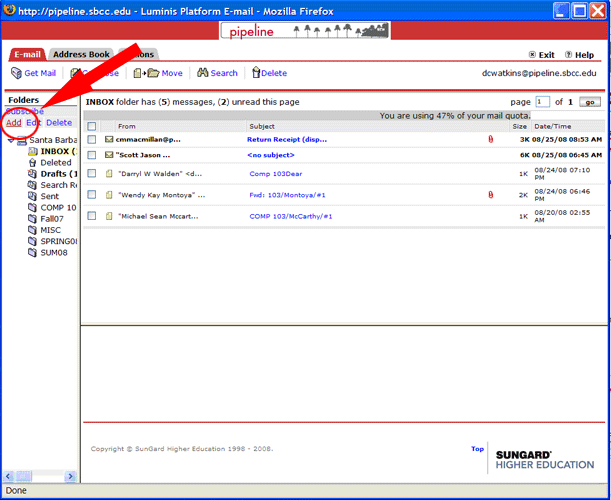
Creating a folder and moving messages in Pipeline:
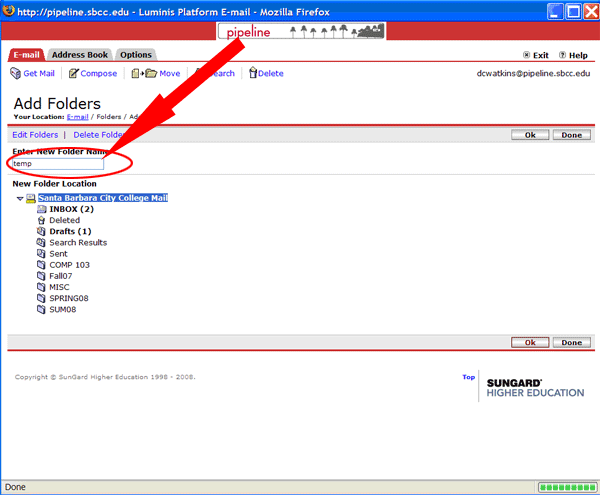
1) Click Add in Folders column
Enter in name of Folder, click on Santa Barbara City College Mail to select the New Folder Location and click Ok.
Click Done.
Congratulations you’ve just created a new folder in Pipeline!
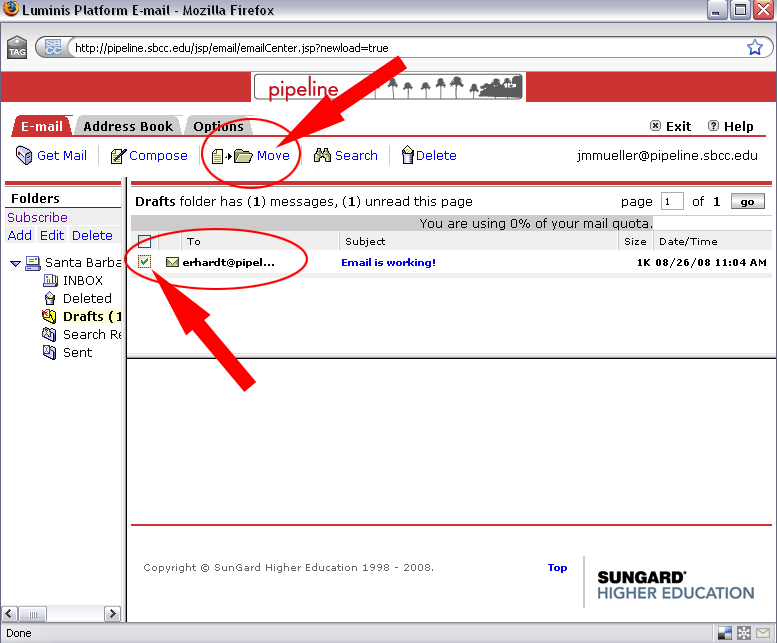
2) Now lets move some email into your new folder. I will demonstrate how to do this by moving a file in my Drafts email folder into my temp folder.
Select the email you wish to move by clicking in the box next to the message (indicated by a green check).(If you have lots of messages to move you can click the box at the very top and it will select them all)
Next, click on the Move icon just below the options tab.
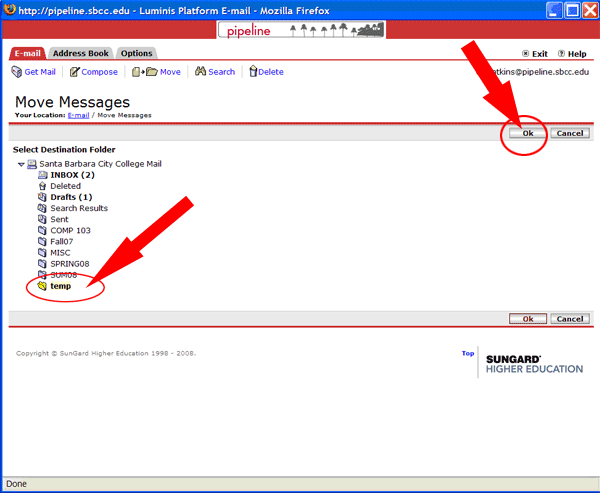
Select the folder where you want to move those emails ( I selected my temp folder) then
Click Ok.
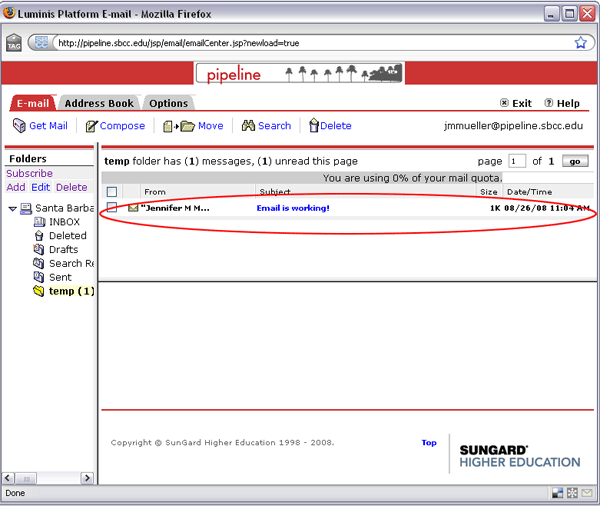
And you’re done! As you can see my email message is now in my temp directory.